 English
  Suomi
Suomi ATTENTION! Read the instructions of examination room before entering the room and follow them accordingly.
Doing an exam
Once you have enrolled to an exam you can do it at the reserved time on a specific computer in the examination room. The number of the exam computer will be included in the reservation confirmation email. The examination room computers can only access the EXAM-system. There will be no internet access available. The examination room computers come equipped with a limited software suite, including Word, Excel, Mathcad Prime, Foxit PDF reader, VLC media player, Paint and Windows calculator. You can also open pdf and jpeg files attached to exams.
The examination room will be entered without outdoor clothing and anything extra. No cell phones or other electrical peripherals, no drinks, food, notes etc. You must only take your ID card or passport with you which will be placed face up on the desk next to the exam computer you are assigned with.
In the examination room there are ear plugs and tissues available. They can be picked from the table inside the examination room before starting an exam.
Starting an exam
Login to the EXAM system. You can login earliest five minutes before the exam time. Use your student credentials to login.
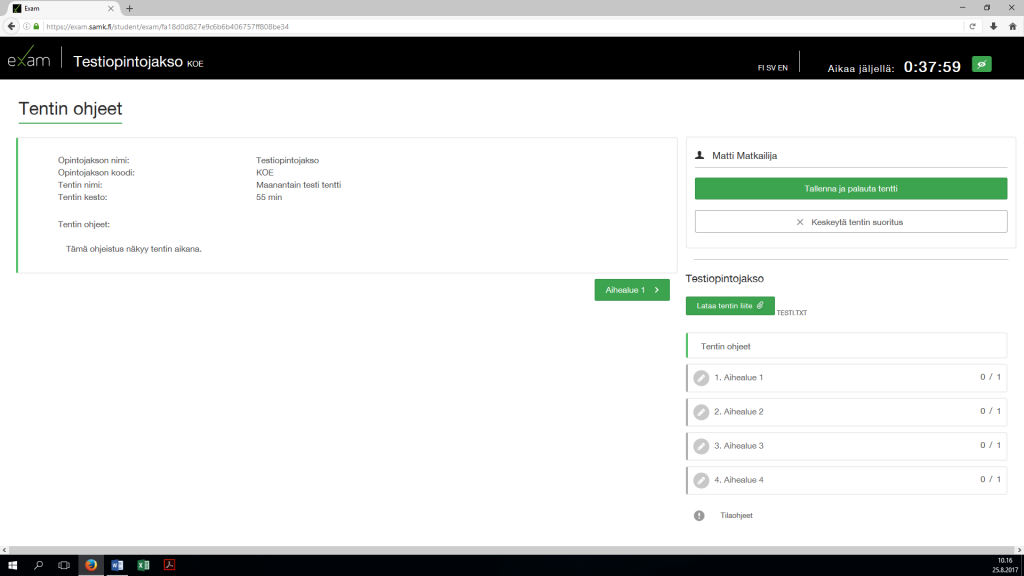
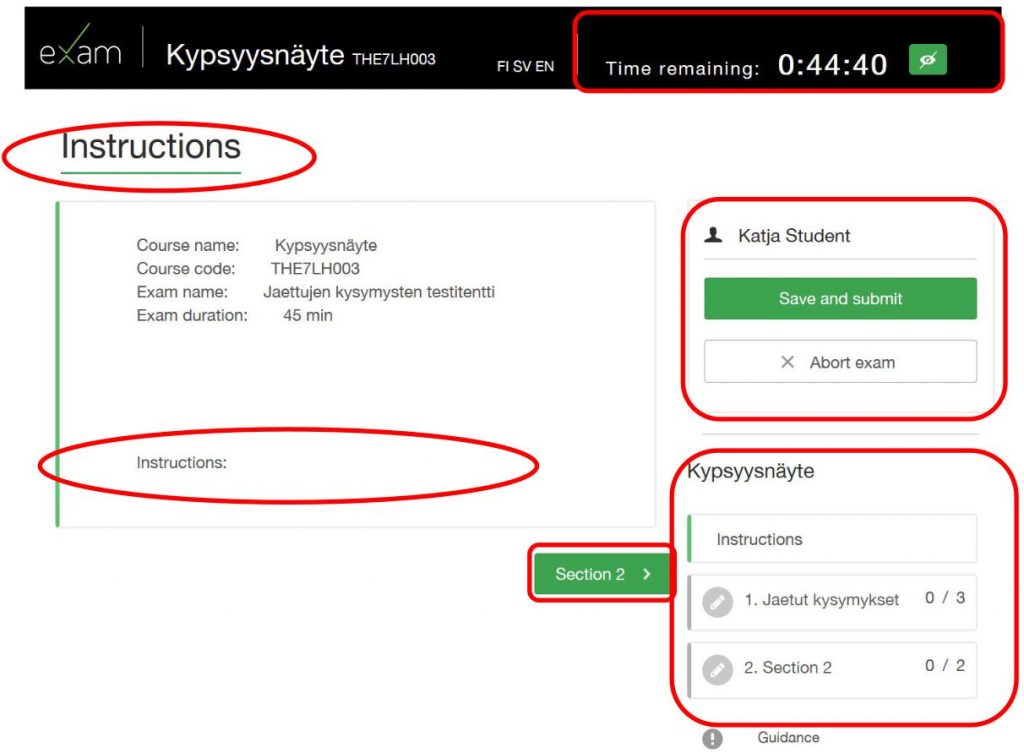
When the exam time begins the browser will automatically guide you to the exam page. After the exam has begun you can all provided attachments for the exam on the right side of the exam page. In the middle you will have the instructions for the exam and the questions. By clicking on the first topic you can start answering the questions.
An exam or exam question may contain an attached file that must be downloaded to the Exam computer and opened with the appropriate program. You can answer each assignment by using the editor built-in the system or by styling your answer in Word and adding the document as an attachment.
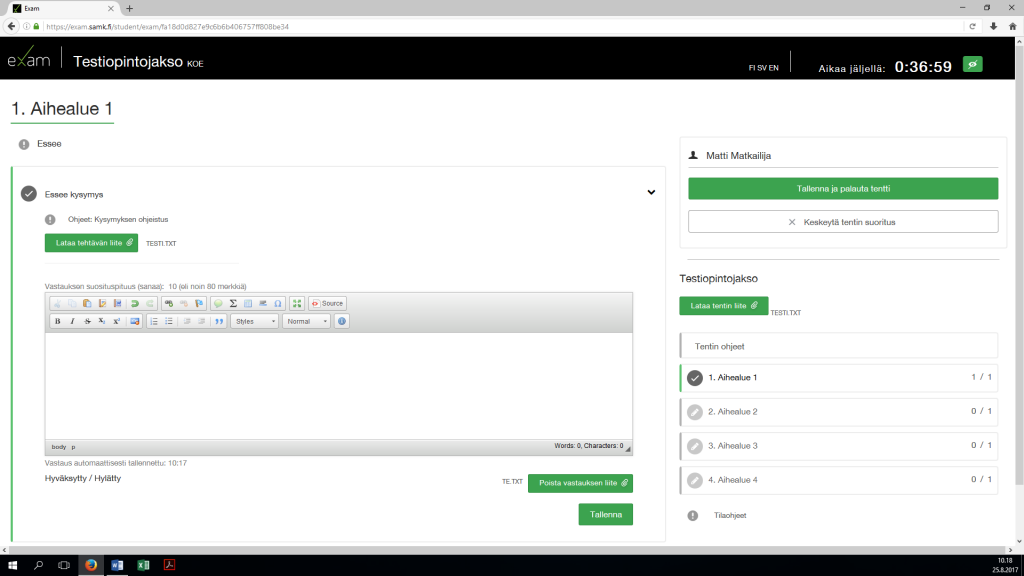
You can find all the available software from the Start-menu. You can save your work to Desktop, Documents and Downloads folders.
Drawing display
Some computers at the examination room are equipped with drawing display. Click here to see how to use the drawing display.
Ending an exam
When you have completed an exam make sure everything is in order and press save and return.
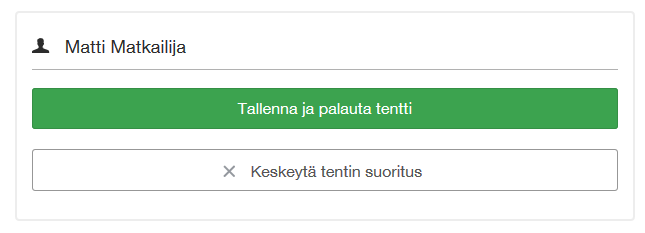
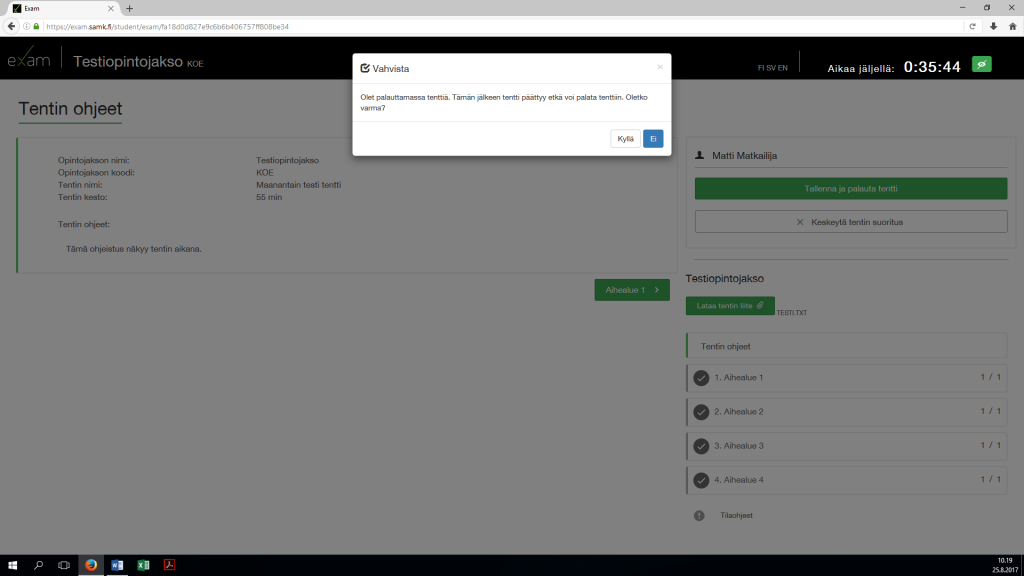
Confirm your choice and the exam will be closed. After this point you cant change your answers anymore.
Before you leave the computer, remember to click on the Sign out and quit icon on the desktop.